

192.168.1.1 Router Login Guide
If you’re trying to reach 192.168.1.1, you’re most likely looking for your router’s admin page so you can tweak Wi‑Fi settings, change passwords, or fix a connection issue. The good news is that it’s usually quick and painless once you know exactly what to do.
What 192.168.1.1 actually is
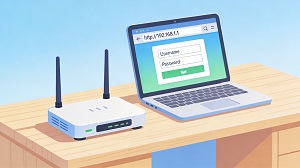 192.168.1.1 is a private IP address that many routers use as their default gateway. You can’t open it from the wider internet; it only works when your phone, laptop, or PC is on the same local network as the router.
Many popular brands use 192.168.1.1 as their default login address, including TP‑Link, Netgear, Linksys, D‑Link, ASUS, and Huawei. When you type this IP into your browser, it should load the router’s admin login screen where all the main network settings live.
What you can do at 192.168.1.1
Once you’re logged in, you get access to all the important controls for your home network. Typical options include Wi‑Fi name and password, internet connection settings, device overview, parental controls, firewall and other security options, port forwarding, and firmware updates. If you want to customize your Wi‑Fi or troubleshoot issues like slow speeds or random disconnections, this admin area is where you’ll spend most of your time.
How to log in to 192.168.1.1
1. Connect to the right network
First, make sure your device is actually connected to your router, either via Wi‑Fi or with an Ethernet cable. The address 192.168.1.1 will not open if you’re on mobile data, a neighbor’s Wi‑Fi, or a VPN tunnel.
2. Type the IP address correctly
Open your preferred browser (Chrome, Edge, Firefox, Safari, etc.) and enter this in the address bar: http://192.168.1.1
Don’t add “www”, avoid extra characters, and make sure there are no spaces before or after the address. Many routers will automatically redirect you to https if needed, so starting with http is fine.
3. Enter the router username and password
You should now see a login screen asking for a username and password. Common default combinations are:
| Username | Password |
|---|---|
| admin | admin |
| admin | password |
| admin | (blank) |
If those don’t work, check the label on the back or bottom of your router, read the original manual, or contact your internet provider if they supplied the device with a custom login.
Why 192.168.1.1 sometimes doesn’t work
1. Simple typing mistakes
A tiny typo is often all it takes for the page to fail. The address must be exactly: 192.168.1.1
People often accidentally enter things like 192.168.l.1 (letter “l” instead of the number “1”), 192.168.1.11, or 192.168.1.0.1, all of which will fail.
2. Your router uses a different IP
Not every router uses 192.168.1.1. Some models ship with addresses such as 192.168.0.1, 10.0.0.1, or 192.168.1.254 instead.
To find the correct address:
On Windows: open the Run dialog with Win + R, type “cmd”, press Enter, then run “ipconfig” and look for the “Default Gateway” value.
On macOS: open Network settings, select your active connection, and check the router or gateway field for the IP address.
3. Not actually connected to the router
If you’re on a VPN, using mobile data, or connected to a different Wi‑Fi network, your browser won’t be able to reach 192.168.1.1, even if that’s the correct gateway. Disconnect the VPN, join your router’s Wi‑Fi, or plug in an Ethernet cable, then try again.
What if you forgot the router password?
If you changed the router’s admin password in the past and can’t remember it now, the only universal fix is a factory reset. This process restores the original settings, including the default username and password.
Typical reset steps are:
- Find the small reset button on the router (often recessed).
- Press and hold it for about 10–30 seconds.
- Wait for the router to restart fully.
Keep in mind that this will erase all custom Wi‑Fi names, passwords, and configuration changes you’ve made, so you’ll need to set them up again afterwards.
Is 192.168.1.1 safe to use?
Yes, 192.168.1.1 is part of the private IP range and is not reachable from outside your local network. However, your router’s security still depends heavily on how you configure it. For better protection, change the default admin login, use a strong Wi‑Fi password, and keep the router’s firmware up to date.
Quick recap
- 192.168.1.1 is a private router IP used for local administration.
- It only works when you’re connected directly to the router’s network.
- To open it, type http://192.168.1.1 in your browser’s address bar, without “www”.
- Use the correct router login; if you can’t, check the sticker, manual, or your ISP.
- As a last resort, you can reset the router to restore default settings, then configure it again from scratch.