

Why 192.168.8.1 Matters
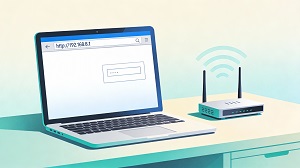 If your browser refuses to open 192.168.8.1, you’re just a few quick checks away from your router’s admin dashboard. This guide walks you through friendly, no‑nonsense steps to get in and fix the most common issues.
Before You Start
Make sure two simple conditions are true before doing anything else.
- You are connected to the router’s own network (Wi-Fi or Ethernet), not mobile data or a neighbour’s Wi-Fi.
- You type the address in the browser’s address bar, not in a search box.
If you are not on the same network, the router at 192.168.8.1 will never respond.
Log In to 192.168.8.1
Once you are on the right network, logging in usually takes under a minute.
- Connect your laptop, PC, or phone to the router via Wi-Fi or cable.
- Open your preferred browser (Chrome, Edge, Firefox, Safari, etc.)
- Click the address bar, type http://192.168.8.1 and press Enter.
- If nothing happens, try https://192.168.8.1 instead, as some routers prefer HTTPS.
- When the login page appears, enter the router username and password, then hit Login/OK.
If the credentials are correct, the router’s management interface will load and you can start changing settings.
Default Usernames and Passwords
If you never changed the login before, the router may still be using a factory default.
Common defaults include:
- Username: admin / Password: admin
- Username: cameras / Password: cameras
- Username: admin / Password: password
- Username: admin / Password: (leave blank)
- Username: (leave blank) / Password: admin
If none of those work, check the sticker on the router, the printed manual, or documentation from your ISP or manufacturer.
When 192.168.8.1 Is Not Your Router
Some routers simply use a different local IP, so 192.168.8.1 will never open their admin page.
You can find the actual router IP (default gateway) like this:
- Windows: Open Command Prompt → type ipconfig → press Enter → read the Default Gateway for your active adapter.
- Mac: Open Terminal → type route get default | grep gateway → press Enter → the shown IP is your router.
- Linux: Run ip route | grep default and use the IP after default via.
- Android: Settings → Wi-Fi → tap your connected network → Advanced/Network details → look for Gateway.
- iPhone / iPad: Settings → Wi-Fi → tap the ⓘ next to your network → see the Router field.
Use that IP in the browser instead of 192.168.8.1.
Quick Fixes When Things Break
Even when everything looks right, the page might still refuse to load or accept your login.
If the page won’t open at all:
- Confirm you are on the same Wi-Fi/LAN as the router and not using mobile data.
- Try another browser or another device.
- Clear browser cache or open a private/incognito window.
- From a terminal/command prompt, run ping 192.168.8.1 to see if the router responds.
If the login keeps failing:
- Retry the default usernames and passwords, watching out for case sensitivity and typos.
- If you changed the password in the past and forgot it, you may need a factory reset (see next section).
If you see a different router page than expected:
- You might be connected to another router on site (IP conflict), so re-check the default gateway on your device.
If the browser warns about security:
- Many routers use a self-signed HTTPS certificate, which triggers warnings but is normal on local networks; once you are sure you are talking to your own router, you can proceed or switch to HTTP.
Factory Reset (Last Resort Only)
If you are locked out completely and nothing else works, a factory reset gives you a clean slate.
- Find the small reset button or pinhole on the router’s body.
- With the router powered on, press and hold it for about 10–30 seconds using a paperclip or similar tool.
- The router will reboot and return to factory defaults, wiping your custom settings.
- After it restarts, log in with the default username and password.
Remember: you will need to set up SSID, Wi-Fi password, port forwarding, VPN, and any other custom options again, so back up settings beforehand if possible.
Stay Secure After Logging In
Once you finally reach the admin dashboard, take a moment to secure your network properly.
- Change the default admin password to a strong, unique passphrase.
- Turn off remote administration from the internet unless you have a clear reason to keep it on.
- Check for and apply any available firmware updates to patch security issues.
- Use a solid Wi-Fi password with WPA2 or WPA3 security.
- Optionally enable a separate guest Wi-Fi network for visitors.
What 192.168.8.1 Actually Is
The address 192.168.8.1 is a private IPv4 address that routers often use for their local admin interface.
- Devices on the public internet cannot reach it; only devices inside the same local network can.
- Different brands choose different defaults, and several Huawei and ISP-branded routers are known to use 192.168.8.1 as their admin IP.
Short FAQ
If none of the above helps, try a direct Ethernet connection, reboot both router and device, or contact your ISP so they can confirm the correct admin IP and default credentials.