

192.168.l.254 Is Just a Typo
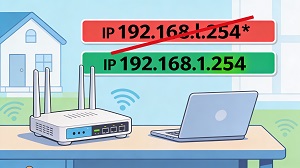 Many people end up on a dead page after typing 192.168.l.254 into their browser, then wonder why their router “stopped working”. The reason is simple: that address is not valid, because l is a letter, not a number.
The IP most users really need is 192.168.1.254, a real, working private IP address used by many home and small office routers as their default gateway.
Quick refresher: what an IP is
An IP address is like a street address for devices on a network, letting them send data to the right destination. In home networks, two main types matter:
- Public IP: Assigned by your ISP and visible on the internet.
- Private IP: Used only inside your local network, e.g. 192.168.1.254.
Most home routers still use the IPv4 format: four sets of numbers from 0 to 255, separated by dots, such as 192.168.1.254. Because every part must be numeric, 192.168.l.254 can never be valid.
The real address: 192.168.1.254
The correct IP behind the common typo is 192.168.1.254. This is a private IP many router manufacturers set as the default gateway, the device that routes traffic between your home network and the internet.
Plenty of brands use 192.168.1.254 as their default login address, including models from Linksys, 2Wire, Aztech, Thomson, Motorola, and others. Typing this address into your browser’s address bar usually opens your router’s admin page, where you can change Wi‑Fi passwords, tweak network settings, and manage security.
Why 192.168.l.254 became a thing
The mix-up comes from how similar the number 1 and the lowercase l look, especially in certain fonts or on small screens. When users copy notes or type quickly, it is easy to slip in an l instead of a 1 and end up with 192.168.l.254 instead of 192.168.1.254.
Browsers and networking tools expect only numbers (plus dots) in an IPv4 address, so as soon as a letter appears, the address fails and you see an error or a search results page instead of your router login.
How to open 192.168.1.254
Once you have the correct address, getting into your router is usually straightforward.
- Open your browser (Chrome, Edge, Firefox, Safari, etc.)
- Click the address bar (not the search box) and type: http://192.168.1.254
- Press Enter; you should see the router’s login page.
- Enter the username and password from the router’s label or manual, unless you have changed them.
For security, change default login details as soon as you sign in so no one can guess their way into your network.
Common login problems (and easy fixes)
Even with the right IP, a few things can still get in the way. Typical issues include:
- Another device using the router’s IP (IP conflict) or a different gateway configured on your network.
- Browser glitches or cached data making the login page fail to load correctly.
- Security software or firewall rules blocking local addresses.
If you cannot reach 192.168.1.254, try a different browser, restart your router, temporarily disable over‑aggressive security tools, and double‑check you did not fall back to the 192.168.l.254 typo.
What you can configure once inside
After logging in at 192.168.1.254, you can do much more than just change the Wi‑Fi name. Typical options include:
- DHCP and static IP settings for devices on your LAN.
- Port forwarding and firewall rules for games, servers, and apps.
- Firmware updates to patch security holes and improve stability.
- Parental controls and Quality of Service (QoS) to prioritize important traffic.
These tools help keep your network both smoother and safer when used thoughtfully.
Private vs public IPs, briefly
The address 192.168.1.254 lives in the private range reserved for internal networks, which means the same address can be reused by many routers around the world without conflicts. Your router holds this private address on the inside and a separate public address on the outside, then uses Network Address Translation (NAT) to connect your devices to the internet.
Because of this split, someone on the internet cannot reach your router just by knowing 192.168.1.254; it is not directly exposed.
Keeping your router secure
Using 192.168.1.254 as a default IP is normal and not a risk on its own, but weak or unchanged login credentials definitely are. A few good habits go a long way:
- Change default admin username and password immediately and store them safely.
- Use at least WPA2, preferably WPA3, encryption on your Wi‑Fi.
- Keep router firmware updated so known vulnerabilities are patched.
- Turn off remote management features unless you truly need them.
Typos like 192.168.l.254 are mostly harmless; they just waste time when you are trying to get into your router’s dashboard.
How to confirm your router’s real IP
If you are not sure your router even uses 192.168.1.254, it is easy to check.
- On Windows, open Command Prompt and run ipconfig, then find the “Default Gateway” entry.
- On macOS or Linux, use Terminal with netstat -nr | grep default or ip route to see the gateway.
- Router manuals and many mobile network scanning apps also list or detect the current router IP.
You may find that your router instead uses addresses like 192.168.0.1, 192.168.1.1, or 192.168.0.254, depending on brand and configuration.
Final reminder
If 192.168.l.254 is not getting you anywhere, replace the l with 1 and go to 192.168.1.254 instead. From there, you can log in, customize your Wi‑Fi, secure your network, and spend your time online instead of hunting for a missing router page.