

BT Hub Manager Login: How to Access Your Hub at 192.168.1.254
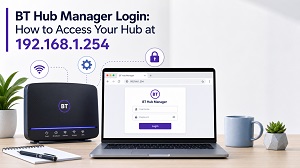 If you’re on BT broadband and want to change your WiFi password, rename your network or check which devices are connected, everything happens through one place: the BT Hub Manager. It’s built into every BT Hub, and you don’t need an app or an internet connection to reach it – just a browser and the right address.
In this guide, we’ll show you exactly how to log in, where to find your admin password, and what to do when the page refuses to load.
What Is the BT Hub Manager?
The Hub Manager is the settings panel of your BT router. It runs directly on the Hub itself, which means you can only open it from a device connected to your home network – either over WiFi or with an Ethernet cable. From there you can manage your wireless settings, set up a guest network, control access for specific devices and check your connection status.
It works on every model BT currently supplies, including the Smart Hub, Smart Hub 2 and the newer Smart Hub 3, as well as the older Home Hub 4 and 5.
How to Log In to the BT Hub Manager
- Connect your phone, tablet or computer to your BT Hub – WiFi is fine, but a cable is more reliable if you’re changing settings.
- Open any browser and type 192.168.1.254 into the address bar (not the search box). Alternatively, type http://bthomehub.home – both lead to the same place.
- The Hub Manager home screen will open. You can view basic information straight away.
- To change anything, you’ll be asked for the admin password.
Where to Find Your Admin Password
Unless you’ve changed it, the admin password is printed on the back of your Hub. On the Smart Hub 3, it’s on the pull-out settings card instead – you can also scan the QR code on the card with your phone to read the details. Note that the admin password is not the same as your WiFi password; they’re two separate things.
Forgotten or Changed Password?
If someone changed the admin password and nobody remembers it, press the recessed reset button on the Hub with a paperclip and hold it for about 20 seconds until the lights flash. This restores factory settings, so the password on the back of the Hub will work again – but you’ll need to set up any custom WiFi names or settings from scratch.
Why Your Browser Says the Page Is “Not Secure”
This catches a lot of people out. When you open 192.168.1.254, Chrome, Edge or Safari may warn you that the connection isn’t private. That’s normal. The Hub uses a self-signed certificate that browsers don’t recognise, but the connection between your device and the Hub never leaves your home network. Click “Advanced” and then “Proceed” (the wording varies by browser) and carry on safely. Recent Hub firmware has switched the Hub Manager over to HTTPS, so you may also see a prompt to continue on a secure connection – that’s expected too.
BT Hub Manager Not Loading? Try These Fixes
- Check you typed it in the address bar. If your browser ran a Google search instead, you clicked the wrong box. Type the numbers into the URL field at the top.
- Confirm you’re on the BT network. The page won’t load over mobile data or from a neighbour’s WiFi.
- Turn off your VPN. VPNs and some antivirus web filters route your traffic away from the local network, blocking access.
- Try an Ethernet cable. If WiFi access fails, a wired connection almost always works.
- Try a different browser or clear your cookies and cache.
- Restart the Hub. Switch it off at the mains for 30 seconds. It’s a cliché because it works.
If none of that helps, a factory reset (see above) is the last resort – after that, 192.168.1.254 and the default password will get you straight in.