

What LPB Piso WiFi Does
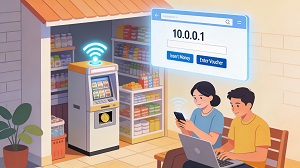 LPB Piso WiFi lets people connect to the internet by inserting coins or using voucher codes, making it a popular low-cost hotspot setup in the Philippines. Everything is controlled through the IP address 10.0.0.1 for customers and 10.0.0.1/admin for vendo owners.
The system gives customers timed internet access, while owners get a full dashboard to track sales, manage users, and adjust speeds and pricing.
10.0.0.1 Login For Customers
If you are just connecting to the WiFi as a user, you mainly use the 10.0.0.1 portal. From there, you can insert money, redeem a voucher, or pause your remaining time when you need a break.
To get started, connect your phone or laptop to the “LPB Piso WiFi” network and then open any browser and type 10.0.0.1 into the address bar. The LPB Piso WiFi landing page will load, where you can choose to insert coins or enter a voucher code.
How To Insert Money
Using coins to get internet access is simple and only takes a few steps.
- Connect to the LPB Piso WiFi network on your device.
- Open your browser and go to 10.0.0.1.
- Tap the “Insert Money” button on the portal page.
- Put your coins into the machine’s coin slot.
- When you are done, click “Done Paying” to activate your session.
After that, your device should automatically get internet access for the amount of time you paid for.
How To Use A Voucher Code
If you already have a voucher, you can skip the coin step and just redeem the code online.
- Connect to the LPB Piso WiFi network and go to 10.0.0.1 in your browser.
- On the portal, look for the voucher field.
- Type or paste your voucher code into the box.
- Click “Submit” to activate the voucher and start browsing.
Voucher codes can be generated by the vendo owner with specific time, data, or speed limits, depending on how the business is set up.
How To Pause And Resume Time
The pause feature is one of the most useful tools for customers, because it lets you save your remaining minutes when you are not using the internet.
- In your browser, go to 10.0.0.1 while you are still connected to LPB Piso WiFi.
- On the portal, click the “Pause Time” button to stop your timer.
- When you are ready to continue browsing, press “Resume Time” to restart your remaining session.
This way, you do not waste your paid time when you step away from your phone or need to take a break.
Admin Login For Vendo Owners
If you own the LPB Piso WiFi vendo machine, you use a slightly different address: 10.0.0.1/admin. The admin portal is where you manage your hotspot, check income, and configure all the technical settings for your business.
To log in as the owner:
- Connect a device to your Piso WiFi network.
- Open a browser and type 10.0.0.1/admin in the address bar.
- Enter your admin username and password, then click “Sign In.”
Once logged in, you will see the LPB Piso WiFi dashboard, which shows your system status, client list, and quick tools for managing the vendo.
Default LPB Admin Credentials
If you have not changed your login details yet, LPB Piso WiFi usually comes with default credentials.
- Username: admin
- Password: 123456789
For security, owners should change these defaults as soon as possible to prevent unauthorized access to the admin panel.
Main Dashboard Features
The LPB Piso WiFi admin dashboard is designed to give you complete control of your hotspot in a simple interface. Inside the panel, you can view reports, adjust your pricing, and manage how users connect to your network.
Common features available in the dashboard include:
- Sales report and total vendo income
- System information and device status
- Voucher generator and voucher logs
- Timer rates and pricing options
- Client list with active and past users
- Bandwidth and speed settings
- Network configuration and system control tools
- Machine schedule and time controls
These tools help owners keep their Piso WiFi business running smoothly and efficiently.
Using The Voucher Generator
The built-in voucher generator is ideal when you want to sell or give out access codes instead of relying only on coins.
- In the admin panel, open the “Voucher Generator” section.
- Click “Generate Voucher.”
- Enter the peso amount, time or minutes, voucher validity, and any data or speed limits you want.
- Click “Generate” to create the new voucher code.
Each generated voucher will show up in the table with its details and status, making it easy to track which codes are active or used.
Setting Wi-Fi Speed Limits
To keep your network fair and stable for everyone, you can limit how fast each user can download and upload.
- Go to the “Network” menu and choose “Speed Limiter.”
- Set a global speed limit for all users, or configure a default per-user speed for upload and download.
- LPB has built-in port prioritization for TCP and UDP traffic, which you can adjust from high to low priority per task if needed.
- Click “Save Changes” to apply your new speed settings.
These controls prevent a few heavy users from slowing down the entire hotspot and help deliver a better experience for everyone.
Key IP Addresses And Links
LPB Piso WiFi mainly revolves around a few important addresses and URLs you should remember.
- Customer login and portal: 10.0.0.1
- Admin login for owners: 10.0.0.1/admin
- Some setups may also use lpb.wifi/index.php for access.
Knowing these addresses makes it easier to connect, troubleshoot, and manage your Piso WiFi system.