

Sky Max Hub Settings: Why Everything Lives in the My Sky App
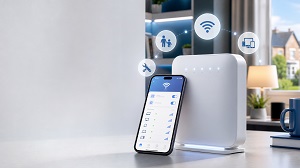 If you’ve just switched to Sky’s white Max Hub and typed 192.168.0.1 into your browser expecting the usual settings page, you’ve probably hit a wall: a status screen, greyed-out options, or a message telling you to download an app. Nothing is broken. The Max Hub (model SR213) and the Gigafast+ Hub are managed almost entirely through the My Sky app – the web interface is deliberately locked down.
Here’s how to change every setting that matters, and what to do when the app refuses to cooperate.
Why Sky Removed the Web Interface
On older Sky hubs, you changed your WiFi name or password through the browser page at 192.168.0.1. On the Max Hub, that page (which sometimes redirects to myrouter.io) is read-only for anything useful – about the only live control left is the UPnP switch. Sky moved configuration into the app, partly because browsers increasingly complain about routers’ self-signed security certificates, and partly because the Max Hub is a cloud-linked device tied to your Sky account rather than a standalone box.
The practical upshot: to manage this hub you need a phone or tablet with the My Sky app, signed in with the Sky ID on the account.
How to Change Your WiFi Name and Password
- Open the My Sky app (download it from the App Store or Google Play if you haven’t).
- Tap Broadband at the bottom, then Product Settings.
- Tap Sky Max Hub.
- Tap the pencil icon next to your WiFi details, enter a new network name or password, and save.
Every connected device drops off the moment you save, so you’ll need to reconnect them with the new details. Note that the 2.4GHz and 5GHz bands share a single name on this hub – the app has no option to split them or pick a WiFi channel; the hub handles that automatically.
Hub Not Showing in the App?
This is the number one Max Hub complaint, and there are two known causes. Brand-new hubs can take 24-48 hours after setup to appear in the app, so if you’ve just been installed, patience genuinely is the fix. If it still doesn’t show, sign out of the app, uninstall and reinstall it, then sign back in – that forces the hub to populate. Users on Sky’s own forum confirm the reinstall trick works almost immediately.
Other Settings Worth Knowing
The My Sky app is essential for managing key Sky Max Hub settings from your phone, including Wi‑Fi controls, connected-device management, parental features, and network troubleshooting. It provides a quicker, more user-friendly alternative to changing advanced router options manually through the hub’s web interface.
Connecting Older Smart Devices
The Max Hub uses WPA3 security by default, which some older gadgets can’t handle. In the app, go to WiFi Settings → Advanced settings → WiFi security level and switch to WPA2. For stubborn 2.4GHz-only devices, temporarily toggle the 5GHz band off in the app, connect the device, then switch it back on.
Port Forwarding
Also app-only: Broadband → Product Settings → Sky Max Hub → Advanced settings, pick the device from the list, add the ports and save. Two tips if the rule doesn’t work: give the device a fixed IP in the app first so the rule doesn’t break after a reboot, and be aware the Max Hub shares IPv4 addresses using a system called MAP-T – adding a port forward should automatically give you a full address, but occasionally that fails, and a reboot or a call to Sky sorts it.
Factory Reset
There’s no pinhole reset. Press and hold the WPS button on the side for about 30 seconds until the front light flashes green. The hub returns to the WiFi name and password printed on its base and the connect card, and you’ll set everything up again from scratch.