

Sky Router Login: How to Access Your Hub at 192.168.0.1
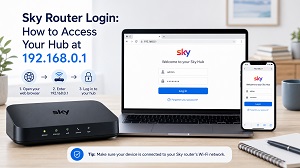 Every Sky router – from the oldest flat black Sky Hub to the newest white Max Hub – uses the same address: 192.168.0.1. Type it into your browser while connected to your Sky broadband, and you’ll reach the hub’s settings page. Unlike BT, Sky has no web shortcut like bthomehub.home, so the IP address is the only way in.
The address is the easy part. What trips people up is the password, because it depends on which hub you have. Let’s sort that out first.
Which Sky Hub Do You Have?
Sky has shipped four main hub generations, and the login details differ between them:
| Hub | Look | Username | Password |
|---|---|---|---|
| Sky Hub (SR101/SR102) | Small, flat, black | admin | sky |
| Sky Q Hub (ER110/ER115) | Flat black, Sky Q branding | admin | sky (newer firmware: your default WiFi password) |
| Sky Broadband Hub (SR203) | Upright black | admin | default WiFi password on the rear label |
| Sky Max Hub (SR213) | Upright white | admin | default WiFi password on the base – but see below |
One detail catches almost everyone on the Sky Broadband Hub: the admin password is the original WiFi password printed on the hub. If you’ve since changed your WiFi password, the admin login still uses the printed one – it’s a separate setting that never changes with it.
How to Log In (Step by Step)
- Connect a phone, tablet or computer to your Sky network – WiFi or Ethernet both work, but a cable is steadier if you’re changing settings.
- Open a browser and type 192.168.0.1 into the address bar (the URL field at the top, not the search box).
- Browse the summary page freely; the login prompt appears when you try to open a settings section.
- Enter username admin and the password for your hub model from the table above.
Everything is case-sensitive, and the printed labels make it easy to confuse a capital O with a zero – if the password is rejected, that’s the first thing to re-check.
What You Can Change Once You’re In
On the black hubs, the settings page lets you change your WiFi name and password, split the 2.4GHz and 5GHz bands (useful when a smart plug or older gadget refuses to connect), set up port forwarding, review connected devices and change the admin password itself. That last one is worth doing on older hubs – “sky” as a default password is famously weak, and Sky has emailed customers urging them to change it.
The Sky Max Hub Is Different
If you have the white Max Hub (part of Sky’s WiFi Max service), the web page at 192.168.0.1 is mostly read-only – it may even redirect you to myrouter.io and show status information with the useful controls greyed out. That’s by design: Sky moved WiFi name, password, parental controls and port forwarding into the My Sky app. Open the app, go to the Broadband tab, tap your hub and use the pencil icon to edit. If the hub doesn’t appear in the app, reinstalling the app usually makes it show up.
Sky Router Login Not Working?
Page won’t load: confirm you’re on your own Sky WiFi (not mobile data), turn off any VPN, and try another browser or an incognito window.
Password rejected: match the password to your hub model using the table – and remember the Broadband Hub wants the printed WiFi password, not your current custom one.
Details lost or changed: press the recessed reset button until the power light flashes (about 10 seconds; on the Max Hub hold WPS for 20+ seconds). The hub returns to factory settings and the printed details work again – you’ll need to reconnect your devices afterwards.