

bthomehub.home Not Working? Here’s Why – and How to Fix It
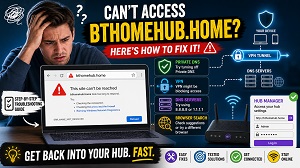 Typing bthomehub.home into your browser should take you straight to the BT Hub Manager. When it doesn’t – you get a search results page, a “site can’t be reached” error, or an endless loading spinner – the cause is almost always one of a handful of things, and most take under a minute to fix.
Here’s what’s actually going wrong, starting with the most common culprit.
Why bthomehub.home Fails
Unlike a normal website, bthomehub.home doesn’t exist on the internet. It’s a local shortcut: your BT Hub answers the request itself and points your browser to its own settings page at 192.168.1.254. That only works if your device is asking the Hub to look up the address.
The moment your device sends its DNS requests anywhere else – Google DNS, Cloudflare, a VPN server, your browser’s “secure DNS” feature – the shortcut breaks, because no public DNS server in the world knows what bthomehub.home is. Keep that in mind as you go through the fixes below; more than half of them come back to this one cause.
8 Fixes That Get You Back In
1. Use the IP Address Instead
The quickest workaround: type 192.168.1.254 into the address bar. It leads to the exact same Hub Manager page and works even when the hostname doesn’t. If the IP works but bthomehub.home doesn’t, you’ve confirmed it’s a DNS issue – fixes 3 to 5 will sort out why.
2. Check You’re in the Address Bar, Not the Search Box
If your browser shows you Google results for “bthomehub.home”, it treated your typing as a search. Click the URL field at the very top of the browser, type the address and press Enter. Adding http:// in front forces the browser to treat it as an address.
3. Turn Off Private DNS on Android
Android’s Private DNS feature (often set to Cloudflare or Google) bypasses your Hub for name lookups, so local addresses stop resolving. Go to Settings → Network & Internet → Private DNS and switch it to Off or Automatic, then try again.
4. Disable Secure DNS in Your Browser
Chrome and Edge have their own version of the same problem, called “Use secure DNS” (DNS-over-HTTPS). When enabled with a public provider, local hostnames fail. You’ll find it under Privacy and security settings – turn it off, or use the IP address from fix 1 instead.
5. Switch Off Your VPN
A VPN tunnels all your traffic – including DNS – away from your home network. Some security suites with built-in VPNs block access to local devices entirely. Disconnect the VPN, load the Hub Manager, make your changes, then reconnect.
6. Make Sure You’re on the BT Network
Obvious but easily missed: bthomehub.home only works from a device connected to your BT Hub. It won’t load over mobile data, so if you’re on a phone, turn mobile data off or confirm WiFi is active. If you use your own router with the BT Hub behind it, your device gets DNS from the other router – and the shortcut dies. Use the IP address instead.
7. Clear the Browser Cache or Try Another Browser
A cached failed lookup can keep the error alive after you’ve fixed the cause. Clear browsing data, or simply open a different browser as a quick test.
8. Restart, Then Reset
Power the Hub off at the mains for 30 seconds and try again – hubs occasionally stop serving their settings page until rebooted. If nothing else has worked, press the recessed reset button with a paperclip for about 20 seconds until the lights flash. This restores factory settings (you’ll lose custom WiFi names and, on Digital Voice, saved contacts), but access via bthomehub.home and the default admin password will be back.
Still Locked Out?
If even 192.168.1.254 won’t load over WiFi, connect with an Ethernet cable – wired access works when wireless glitches. And once you’re in, everything about passwords, settings and the “not secure” browser warning is covered in our full BT Hub Manager login guide.